
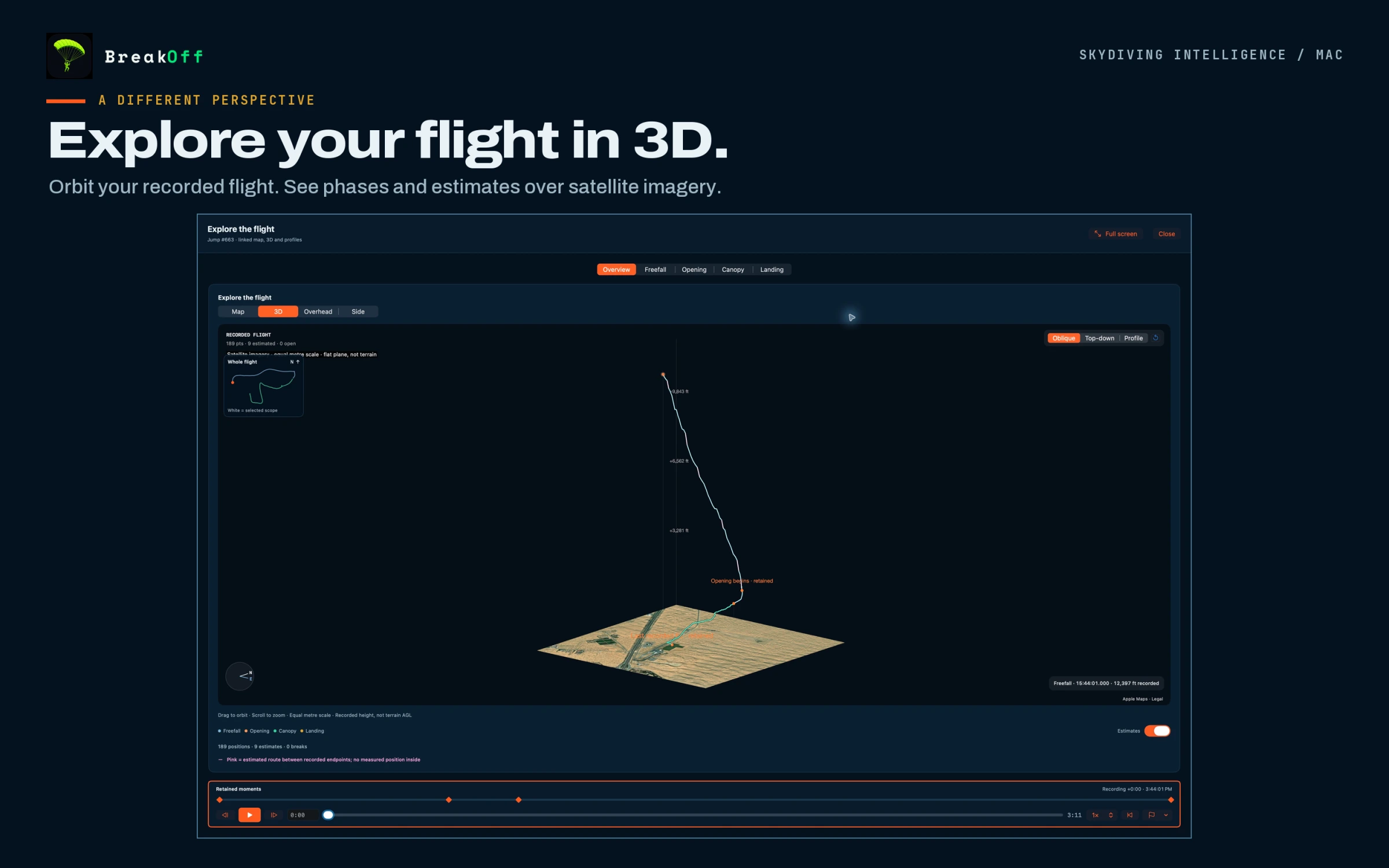
The whole flight, in 3D.
Orbit a satellite-backed view, switch overhead or side-on, and revisit the recorded route. Open the view in its own window when the question deserves more space.
BreakOff for Mac / New in 2.1
Expand the chart. Follow the path. Compare the jumps. Your iPhone logbook gets a full desktop debrief.
Native macOS · Apple silicon + Intel · macOS 15+
Available on the Mac App Store.
 BreakOff for Mac · approved real-jump gallery
The native Mac workspace
Four approved captures from BreakOff for Mac. Select a view or enlarge the card to see the details.
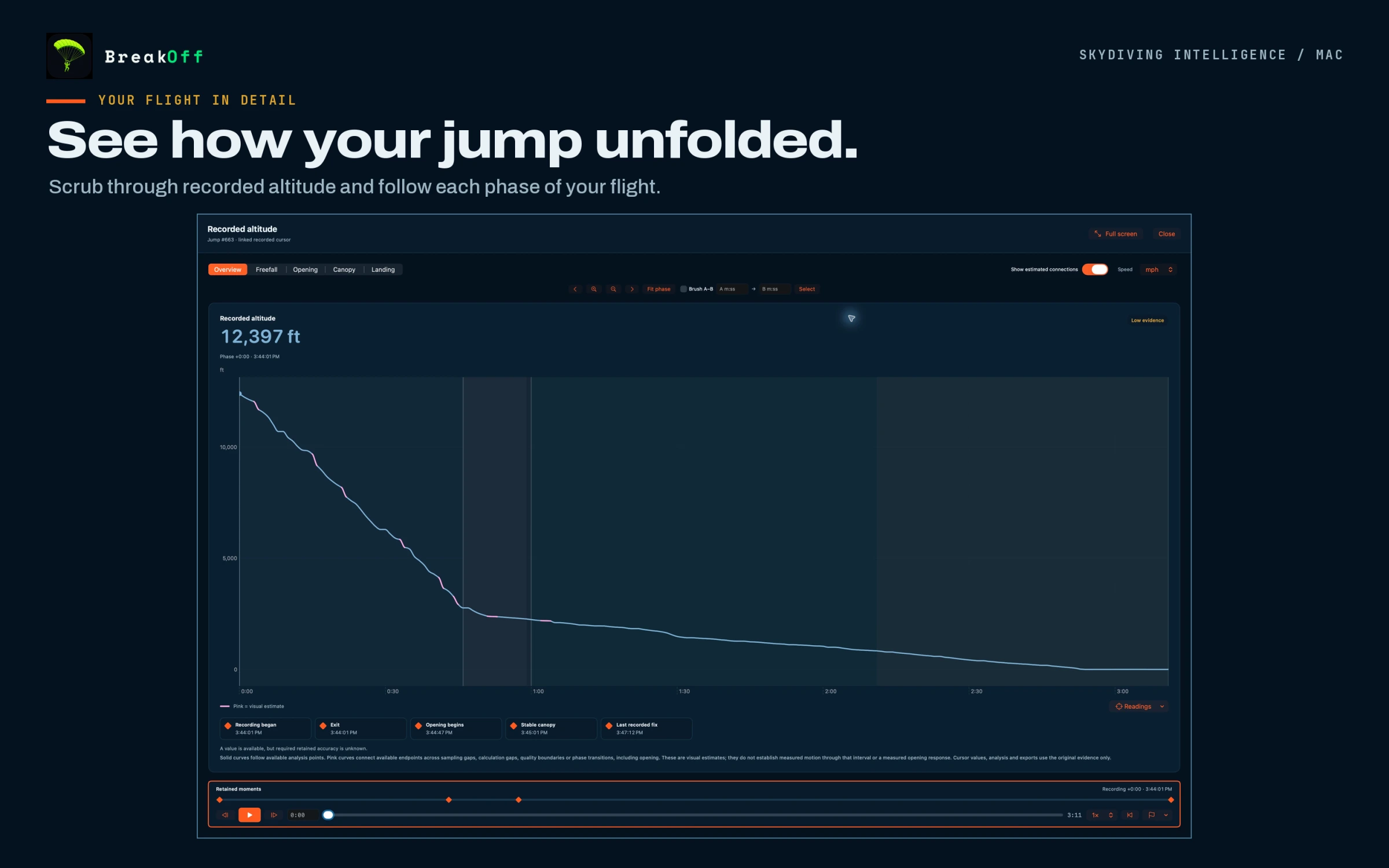
Choose a phase or mark an exact interval. Charts share the same recorded cursor. Pink spans are visual estimates and never change measured values or exports.
BreakOff 2.1 on Mac · approved real-jump gallery
The gallery shows the real Mac app with owner-approved recorded jumps. The interactive website flight below uses synthetic data.
01 / Linked debrief / Pro
Choose a phase, a key event or an exact interval. The shared cursor keeps the maps, charts and recorded readings together.
Orbit a satellite-backed view, switch overhead or side-on, and revisit the recorded route. Open the view in its own window when the question deserves more space.
Explore Overview, Freefall, Opening, Canopy and Landing. Choose your channel layout, expand a chart and inspect the actual retained samples.
Play the flight, step through samples or select an A–B interval. Keep local notes and bookmarks for the moments you want to revisit. Event labels and the pinned playback strip stay within reach.
Pink connections are labelled visual estimates. Missing measured values stay missing. Original timestamps, calculations and exports remain unchanged.
Channels appear where the original recording supports them. A device or file may not contain every measurement.
Interactive replay / Synthetic example
Play, scrub and orbit an invented flight to explore the replay controls. See the real Mac interface in the approved gallery.
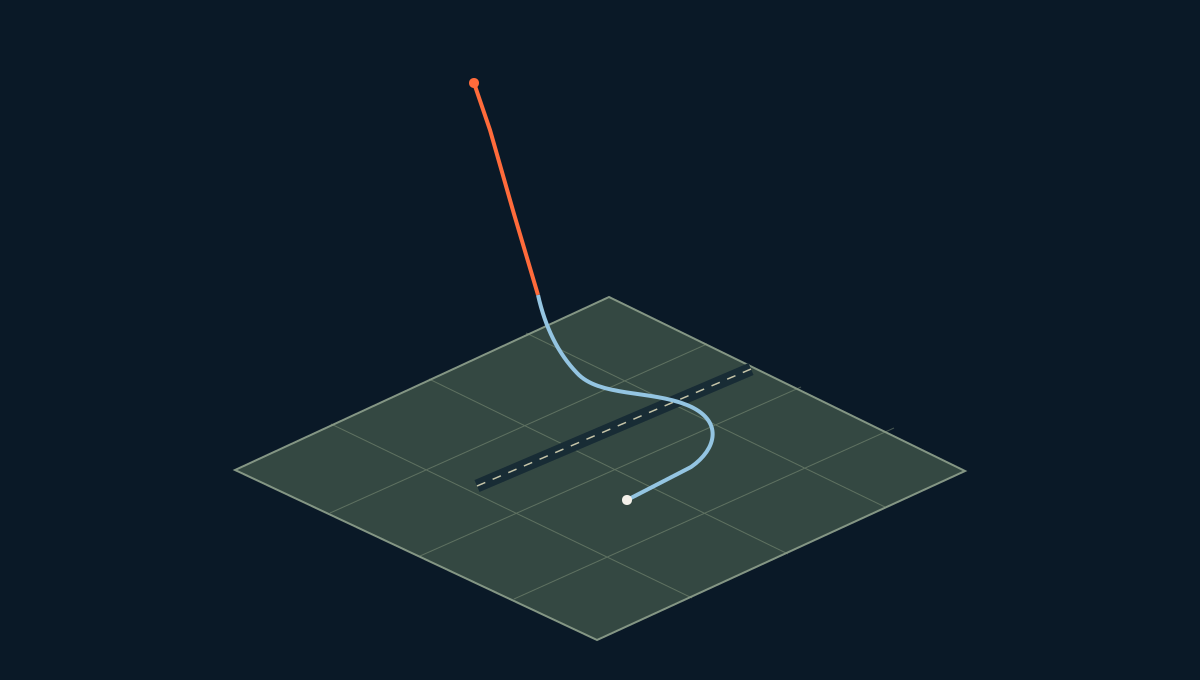
Drag to orbit · scroll to zoom
Load the synthetic flight to orbit, scrub and explore.
All flight positions, times and altitudes here are invented. This is a website demonstration, not a recorded jump or a navigation tool.
Explore the Mac gallery ↗02 / Compare / Pro
Select two to four exact recordings. Align the phase, inspect the differences and keep each flight’s original context.
How comparison works ↗Choose the exact jumps, then align their phase or reference point. Each source stays distinct.
Review supported same-canopy openings and follow the details back to each jump in Canopy Passport.
Select a range and compare supported readings without turning missing samples into measurements.
03 / Canopy + advanced insights / Pro
Isolate the canopy flight. Follow a turn. Explore the relationship between the recorded path, the conditions you enter and the equipment you flew.
Inspect supported glide, descent and ground-track turn rate. Review turn entry, peak and exit, then select the interval you want to revisit.
Enter and confirm independent wind information to explore supported horizontal air-relative estimates. Use a manual reference line to examine a projection. Your inputs and estimates stay clearly identified.
Explore training summaries for Tracking/Wingsuit, Canopy piloting, Accuracy and Freefall where the recording supports them. These are post-jump analysis tools, not official competition scores or in-air guidance.
Supported readings depend on the recording. Satellite imagery provides a flat ground reference; it is not a terrain model or proof of height above the ground.
04 / Saved equipment history / Pro
Bring the history behind the flight into the same review. Mac displays the rig and component details saved from iPhone.
Explore linked jumps, service history and supported opening and flight trends for an exactly tracked owned canopy. Follow the result back to the source jump. Unknown ownership and rental gear stay distinct.
Review named rigs, main canopy, container, reserve, AAD and current or archived linesets. A jump keeps its recorded equipment snapshot when your present-day rig changes.
Review component lifecycle, linked uses, explicit lifetime corrections and saved inspection, repack and service dates. Due-date cards reflect your saved details.
Gear editing and reminder settings stay on iPhone. Mac gives the saved history room to breathe; it does not schedule macOS reminders or certify equipment condition.
05 / Your desktop logbook
Start with Home, open a jump day or search the history. Go from the overview to the exact recording that caught your attention.
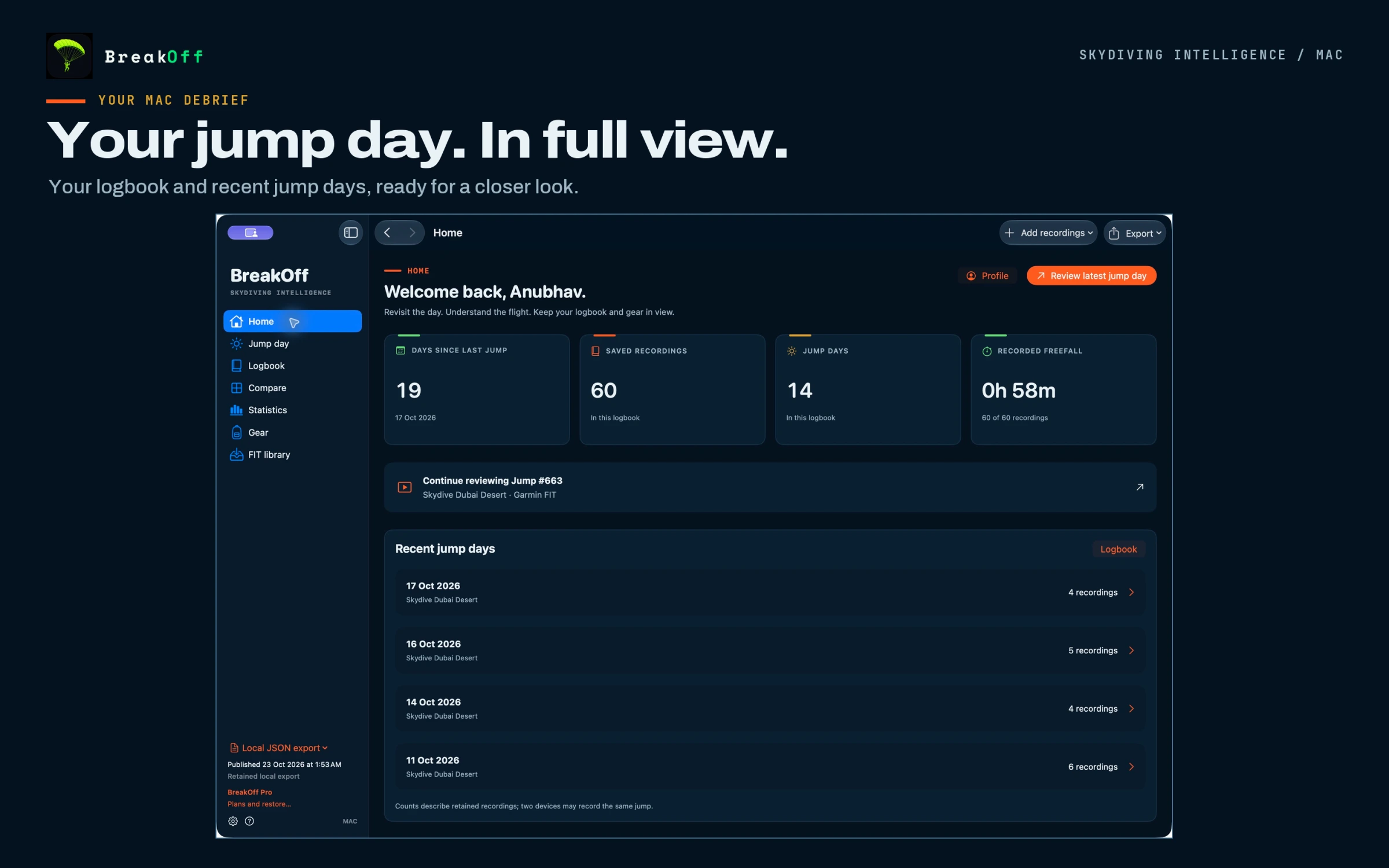
Browse by actual date, dropzone and recording source. Select the flights you want to compare, save a useful filter and move through the workspace with back and forward navigation.
With Pro, select a period and click a supported metric, month or dropzone in Statistics to see the contributing jumps. Choose display units and time zone.
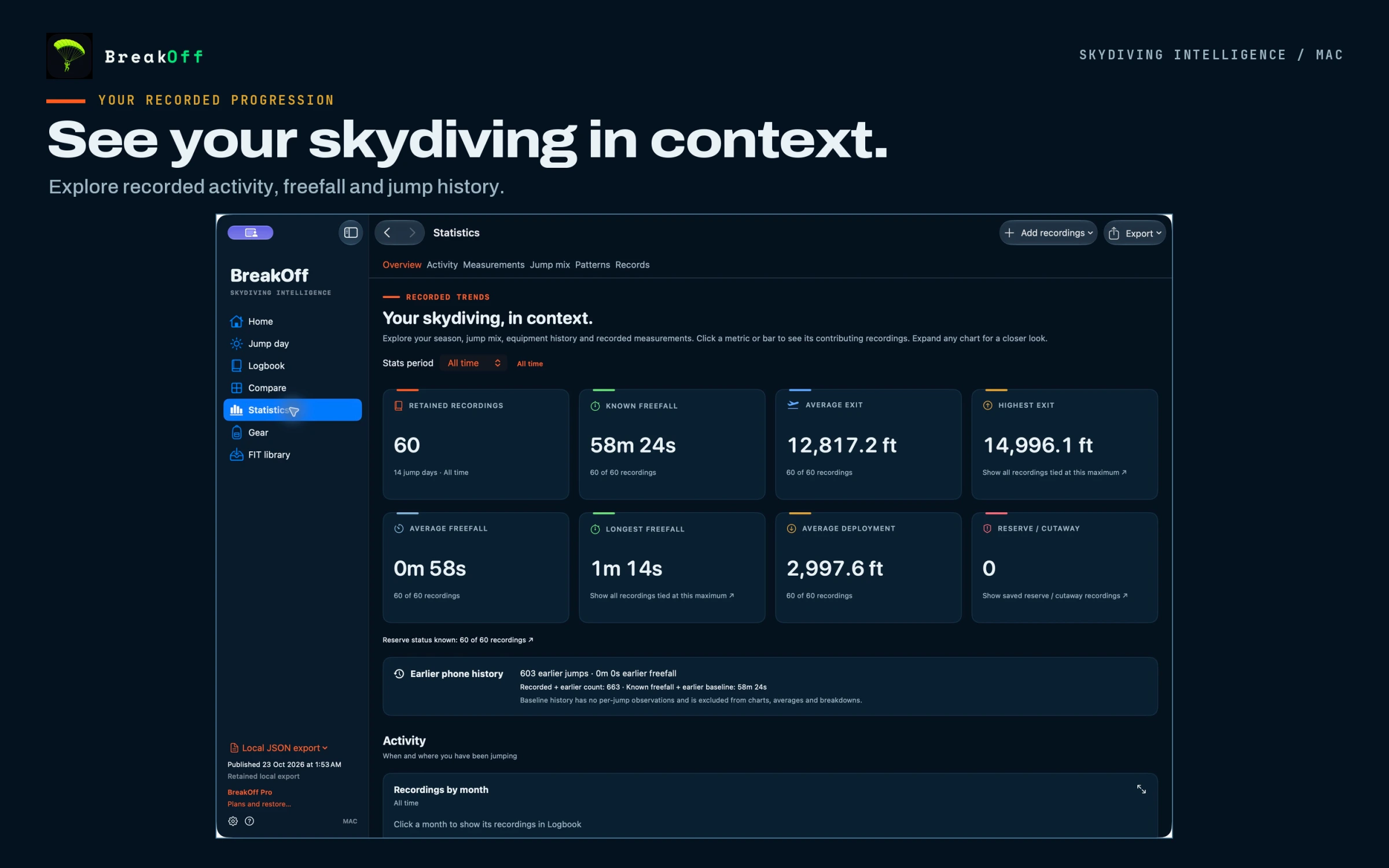
Free shows the newest ten basic saved records. Logbook unlocks the full saved history; Pro adds Statistics and deeper analysis. Older saved records remain preserved.
06 / Garmin FIT + original files
Give original Garmin recordings a dedicated place on your Mac. Review the evidence before deciding what belongs in your common logbook.
Export original FIT files manually from Garmin Connect, then add them to the Mac FIT library. Larger selections queue in protected groups of six.
Check prepared results, source coverage and duplicate warnings. Failed files remain available to retry. The original recording stays separate from your analysis.
Choose Save to common logbook, then open the updated iPhone app to validate and save the request. A prepared local file is not yet a saved common-logbook entry.
Recover a retained original FIT from the Mac library. Export detailed analysis CSV or JSON with Pro. Review each format’s location content before sharing; the Mac guide explains which exports include coordinates.
Use the separate verified Mac library archive and original-evidence handoff when appropriate. Ordinary logbook backup does not include every original or your linked local videos.
07 / Reports / Logbook + Pro
Turn the saved logbook into a report you can keep. Choose the records, preview the pages and send them to your printer or a file.
Use all records, the exact current filtered order, selected jumps, a date range or a jump-number range. Keep original notes and group sizes with the report.
Preview Compact or Spacious pages in A4 or US Letter. Save the PDF, export a logbook CSV or use the native macOS print dialog.
Reports carry recorded sign-off status and details. Create or invalidate digital sign-offs on iPhone; Mac does not independently certify them. Handwritten report space remains available.
Logbook reports and detailed analysis exports serve different purposes. Pro adds analysis CSV/JSON and sample exports, with deliberate choices about sharing precise location.
08 / Linked video / Pro
Bring a local jump video into the debrief. Set its timing deliberately, then follow the same moment through the footage and the recorded data.
Select the file you want to review with the recording. You control the file and its access on your Mac.
Set the offset so the video and recorded timeline refer to the same moment.
Move through the flight and revisit a moment in the linked footage, charts and path.
Linked media and its alignment stay on that Mac. Videos are not automatically uploaded, synchronized to iPhone or embedded in ordinary logbook backups.
Link and align your video ↗One logbook / More room to review
Capture on your wrist. Keep one logbook on iPhone. Give the debrief room on Mac.
Arm Apple Watch before boarding, or record with the free BreakOff Garmin app on a supported watch. Garmin FIT transfer into BreakOff remains manual.
Set up your recorder ↗The updated iPhone checks and applies eligible Mac additions, corrections and deletions, then publishes confirmed changes through private iCloud. Pending requests are retained during interruptions. Set up the common logbook ↗
Your existing plan / Across your Apple devices
Your active BreakOff plan applies on Mac. Use the same App Store Apple Account and Restore Purchases.
Unlimited saved history, manual and FIT save workflows, logbook PDF/CSV, native printing and backup controls.
Compare the plans ↗Everything in Logbook, plus full analysis, 3D, comparison, Statistics, saved gear history, Canopy Passport and linked video.
Explore Pro ↗Free retains basic access to the newest ten saved jumps. Older records remain preserved. App Store prices and terms apply; Mac does not introduce a separate subscription.
Before you open the logbook
Download BreakOff from the Mac App Store. Your existing Logbook or Pro subscription works on Mac: use Restore Purchases with the Apple Account that owns your plan.
A Mac running macOS 15 or later. The app supports Apple silicon and Intel. The current iPhone app requires iOS 26 or later; Apple Watch requires watchOS 26 or later. iCloud exchange needs the same Apple Account and the updated iPhone app.
Yes, through explicit common-logbook requests. Your updated iPhone app validates and applies the change, then publishes the result. Keep that app open to process pending requests. Mac gear views are read-only; manage rigs and components on iPhone.
Import the original FIT files manually. The free Garmin recorder works on the watches listed on Connect IQ. Files prepared on Mac remain local until you explicitly request Save to common logbook and iPhone confirms.
Retained recordings, charts and recorded geometry can be reviewed locally. Satellite imagery, private iCloud exchange and purchase verification use Apple services. There are no persistent offline map packs.
No. Linked videos remain local. Ordinary logbook backup is not a complete device or original-evidence backup. Keep original FIT files and use the separate verified Mac library archive where appropriate.
BreakOff for Mac / Download
Native macOS · macOS 15+ · Apple silicon + Intel. Use Restore Purchases with the App Store Apple Account that owns your existing Logbook or Pro subscription. A second Mac subscription is not required.
BreakOff 2.1 is available on the Mac App Store. Update iPhone and Mac together for the common logbook.