
Set up before boarding
Update both devices.
Use the current BreakOff app on iPhone and its paired Apple Watch. Open both apps and let settings and available entitlements sync.
Review permissions and your jump settings.
Allow required sensor/location access. Health access is optional for recorded heart rate. Check your chosen gear, break-off and deployment settings while on the ground.
Open Jump and check readiness.
Arm before boarding. Read the Watch’s Jump Check and any sensor availability messages. Let the device record through the jump; keep your certified instruments and normal procedures.
Choose a landing target — Pro
Open Settings → Landing target on iPhone.
Use the detailed map to inspect the intended location. Choose your current location or place an explicit pin.
Name, save and check the pin.
Reopen it and confirm that the saved target is where you intended. A named location is useful only if the pin is correct.
Arm a new Watch session.
Keep the devices connected while settings sync, then confirm the selected target in Jump Check. The new session uses that selected target.
Choose independent distance units
In iPhone Settings, use Distance to landing target to choose feet or metric distance. Metric shows metres below 1 km and kilometres from 1 km. This setting is independent of altitude and speed.
Save the preference, allow it to sync to the Watch, then check the display before a new session. Your altitude and speed choices continue to control their own measurements.
Understand the canopy display
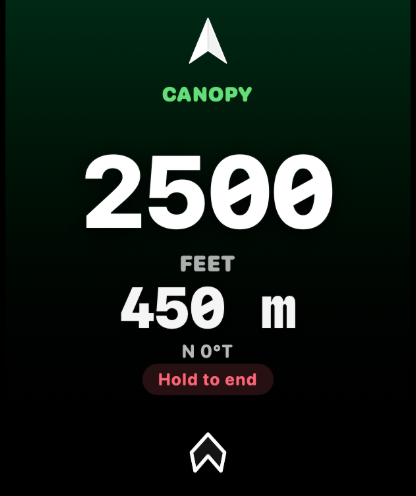
Altitude remains central. When a valid target and position are available, the screen shows target distance. An accepted heading enables the bright-white wrist-relative compass arrow.
If compass heading is missing, distance and geographic bearing can remain available while the arrow is omitted. Without a valid target, direction and distance are omitted. Read the availability state shown by the Watch.
After landing and transfer
Bring iPhone and Watch together, open BreakOff on both and let the queued transfer complete. Check that the jump appears in the phone logbook before treating it as safely transferred. Review details and save any pending decisions.
For a transfer problem, keep both apps available and retain the recording. Pending Watch recordings are separate from the iCloud logbook backup. Do not delete the app to try to fix a missing record.
Add Jump Day Status
Customize a supported Watch face and choose BreakOff’s Jump Day Status complication in an available slot. It provides useful day context from the data available to the Watch. Open BreakOff if settings or recent jump information needs to refresh.
Full Apple Watch setup and permissionsStill need a hand?
Include your app version, device model and the exact message or step where you got stuck.
Contact BreakOff